Members and roles
Invite your team and control what each person can see and do.
Everyone in your organization is a member with a role. The role decides which pages they see, which conversations and customers they can open, and what they can change.
Invite people
Section titled “Invite people”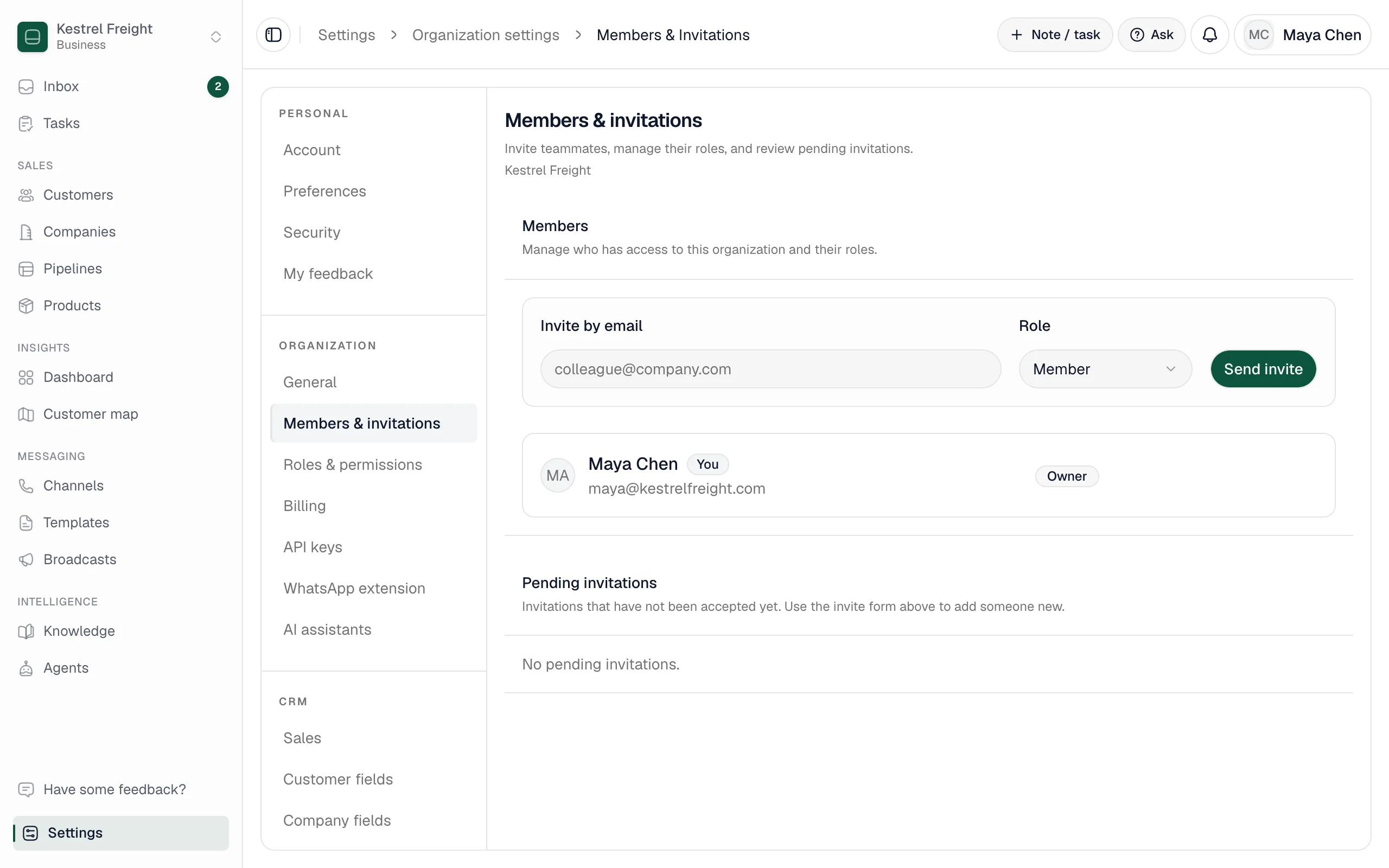
- Open Settings → Members & invitations.
- Enter their email and choose a role.
- They get an email invitation. Pending invitations are listed until accepted.
Your plan limits how many seats you have. See Plans and billing.
To remove someone, open their row and remove them. They lose access to the organization straight away. API keys they created stop working too.
Built-in roles
Section titled “Built-in roles”| Role | Typical use |
|---|---|
| Owner | Full access, including billing, member management and deleting the organization. |
| Admin | Manages members, invitations, channels, agents and settings. Cannot delete the organization. |
| Member | Works in the inbox and CRM, with narrower defaults. |
What each role can do by default
Section titled “What each role can do by default”| Area | Owner | Admin | Member |
|---|---|---|---|
| Channels | Manage | Manage | View |
| Knowledge | Manage | Manage | Manage |
| Billing | View and manage | View and manage | No access |
| Templates | Manage | Manage | View |
| Broadcasts | Manage | Manage | View |
| Customers | All customers | All customers | Assigned customers only |
| Edit customers and deals | Yes | Yes | Yes |
| Configure pipelines and CRM settings | Yes | Yes | No |
| Conversations | All, including unassigned | All, including unassigned | Assigned only |
| Delete conversations | Yes | Yes | No |
The main difference is visibility. A member sees only the customers and conversations assigned to them. Owners and admins see everything.
Custom roles
Section titled “Custom roles”On the Business plan and custom packages, owners can change what the built-in roles allow and create their own roles. Open Settings → Roles & permissions.
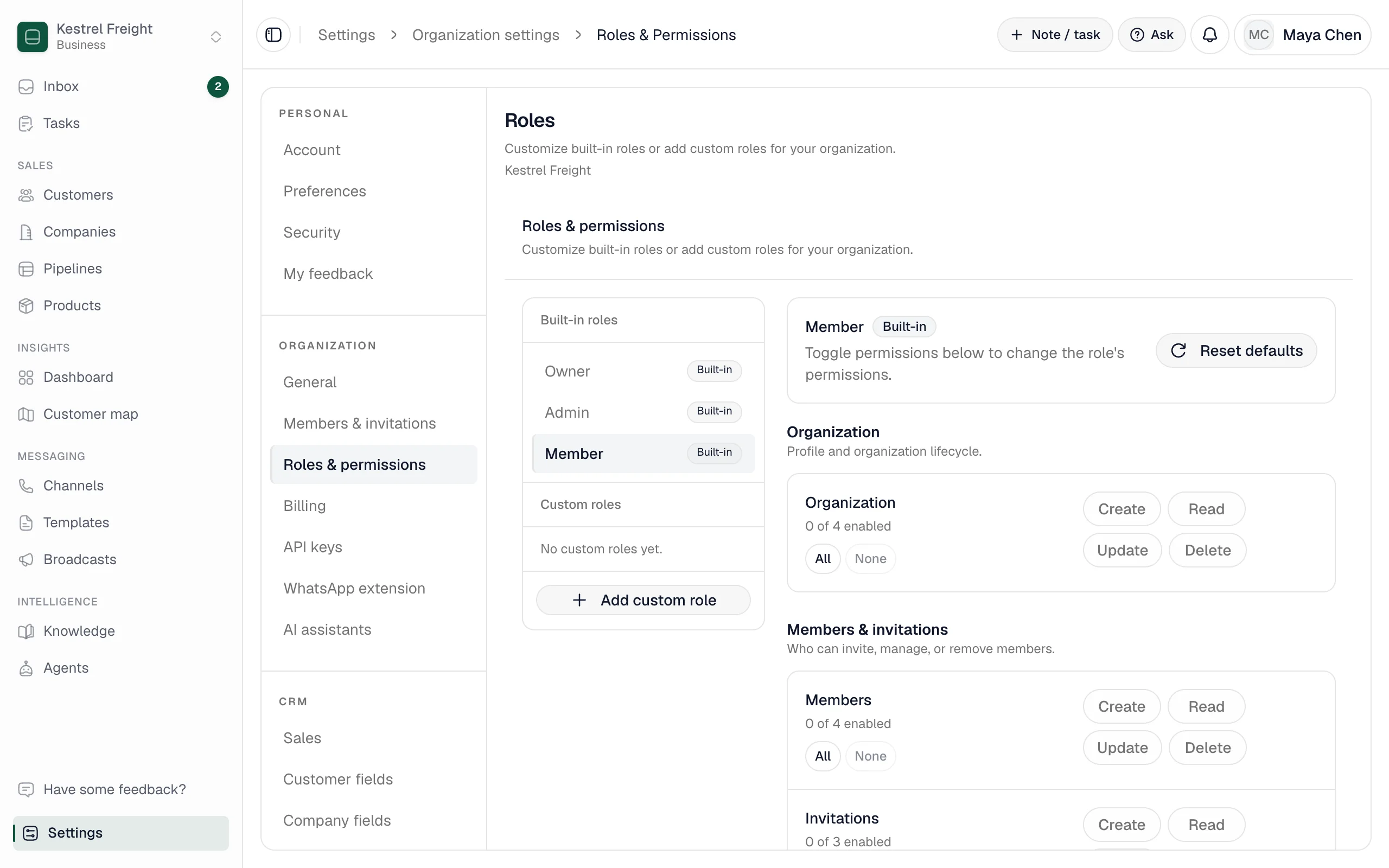
- New roles start with member-level permissions. Turn permissions on or off by area: organization, members, channels, knowledge, customers, inbox, templates and billing.
- Role names use lowercase letters and hyphens, such as
support-lead. - A member’s access is everything granted by all of their roles together.
- Reassign the members of a custom role before you delete it.
A common example is a team lead who should see the unassigned queue but not billing.
On other plans, Roles & permissions shows what each built-in role can do.
Enforcement
Section titled “Enforcement”Permissions are checked by ChatAgent’s servers, not only hidden in the app. A member cannot reach data outside their role through a direct link, an API key or an AI assistant.