MCP server
Connect Claude, ChatGPT and other AI assistants to your ChatAgent workspace.
ChatAgent has a built-in MCP server. Connect it to an AI assistant, such as Claude or ChatGPT, and ask the assistant about your customers, conversations and knowledge in plain language. Each rep can use their own assistant as a sales assistant that knows your CRM. For example: “Which customers asked for a quote this week?” or “Add these companies from my spreadsheet.”
On our website this is called Agentic CRM.
Find the server URL and the setup steps in Settings → AI assistants.
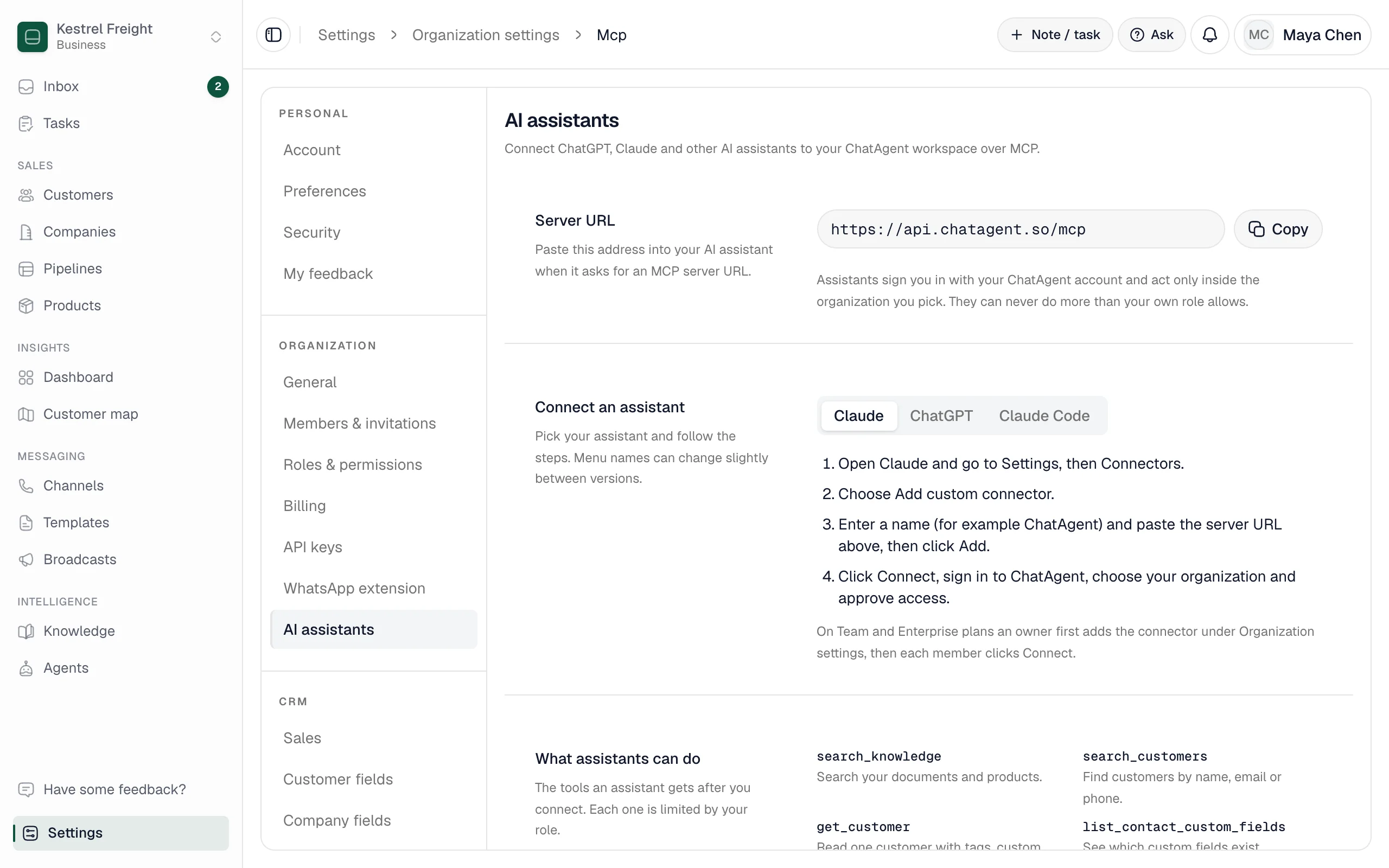
Server URL
Section titled “Server URL”https://api.chatagent.so/mcpThe assistant signs you in with your ChatAgent account. You pick an organization and approve access. No API key is needed.
Connect an assistant
Section titled “Connect an assistant”Menu names can change a little between versions of each assistant.
Claude
Section titled “Claude”- Open Claude and go to Settings → Connectors.
- Choose Add custom connector.
- Enter a name, such as ChatAgent, paste the server URL, then choose Add.
- Choose Connect, sign in to ChatAgent, choose your organization and approve access.
On Claude Team and Enterprise plans, an owner first adds the connector in organization settings. Then each member chooses Connect.
ChatGPT
Section titled “ChatGPT”- Open ChatGPT and go to Settings → Apps.
- Open Advanced settings and turn on Developer mode.
- Choose Create app, enter a name such as ChatAgent, and paste the server URL.
- Set authentication to OAuth, confirm you trust the app, and choose Create.
- Sign in to ChatAgent, choose your organization and approve access.
Custom apps need a paid ChatGPT plan. On Business, Enterprise and Edu workspaces, an admin may need to allow Developer mode first.
Claude Code
Section titled “Claude Code”Run:
claude mcp add --transport http chatagent https://api.chatagent.so/mcpThen start Claude Code, run /mcp, select chatagent and sign in to ChatAgent in the browser.
| Tool | What it does |
|---|---|
search_knowledge |
Search your documents and products. |
search_customers |
Find customers by name, email or phone. |
get_customer |
Read one customer with tags, custom fields and channels. |
list_contact_custom_fields |
See which custom fields exist. |
search_conversations |
Find inbox conversations. |
get_conversation |
Read a conversation and its recent messages. |
search_companies |
Find companies. |
create_customer |
Create a customer. |
update_customer |
Edit a customer, their tags and custom fields. |
create_company |
Create one company. |
create_companies |
Create up to 100 companies at once. Existing names are skipped. |
add_internal_note |
Add a private note to a conversation. |
Access and safety
Section titled “Access and safety”- The assistant works only inside the organization you chose when you signed in.
- It can never do more than your own role allows. Read tools need read access. Tools that create or change data also need permission to manage customer profiles.
- Assistants never send messages to customers. Notes they add are internal.
- Company tools need companies on your plan.
Troubleshooting
Section titled “Troubleshooting”| Problem | Fix |
|---|---|
| The assistant uses the wrong organization | Disconnect the connector and connect again, then pick the right organization. |
| A tool says the feature is not in your plan | Company tools need company management. See Plans and billing. |
| A tool says permission is required | Ask an admin for a role that can manage customer profiles. |
| Sign-in keeps repeating | Remove the connector in the assistant, then add it again with the server URL. |