Assignment and visibility
Who owns a conversation, how new chats are routed, and who can see what.
Every conversation is either assigned to one teammate or unassigned. Assignment tells the team who is following up. It also tells the AI to step back: while a person is assigned, autopilot does not reply.
Assigning a conversation
Section titled “Assigning a conversation”Open a conversation and pick an assignee from its header. You can assign yourself, a teammate, or nobody.
- Assigning does not send anything to the customer.
- Unassigning puts the conversation back in Unassigned.
- The new assignee gets a notification, if they have that notification turned on. See Notifications.
Routing new conversations
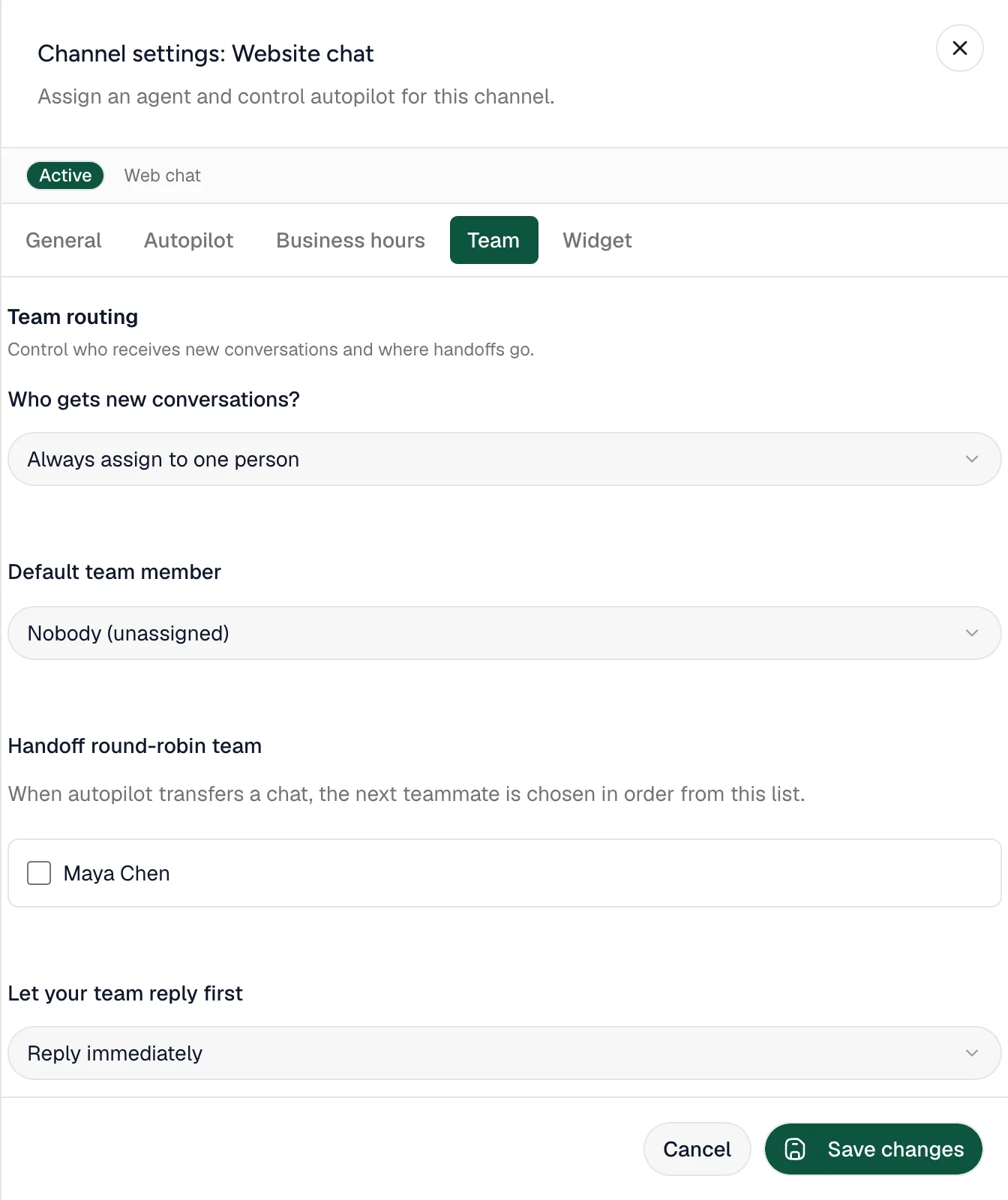
Section titled “Routing new conversations”Each channel decides who receives its new conversations. Open Channels, choose the channel, then open the Team tab.
| Setting | What it does |
|---|---|
| Who gets new conversations? | Always assign to one person sends every new chat to the default team member. Assign to the contact’s owner first routes it to the teammate who owns that customer, and falls back to the default member. |
| Default team member | The person who gets new chats. Choose Nobody (unassigned) to leave them in the shared queue. |
| Handoff round-robin team | The teammates who receive chats when the AI hands off. The next person is picked in order from this list. |
| Let your team reply first | How long autopilot waits on a new message so a person can answer first. |
Who can see what
Section titled “Who can see what”What you see in Inbox depends on your role.
| Role | Conversations they see by default |
|---|---|
| Owner | All conversations, including unassigned ones. |
| Admin | All conversations, including unassigned ones. |
| Member | Only conversations assigned to them. |
A member who should also work the shared queue needs the unassigned read permission. On plans with custom roles, an owner can create a role with that permission. See Members and roles.
These limits are enforced by ChatAgent itself, not only hidden in the app. A member cannot open a conversation outside their scope, even with a direct link.