Tasks
One list of what needs you today, most urgent first.
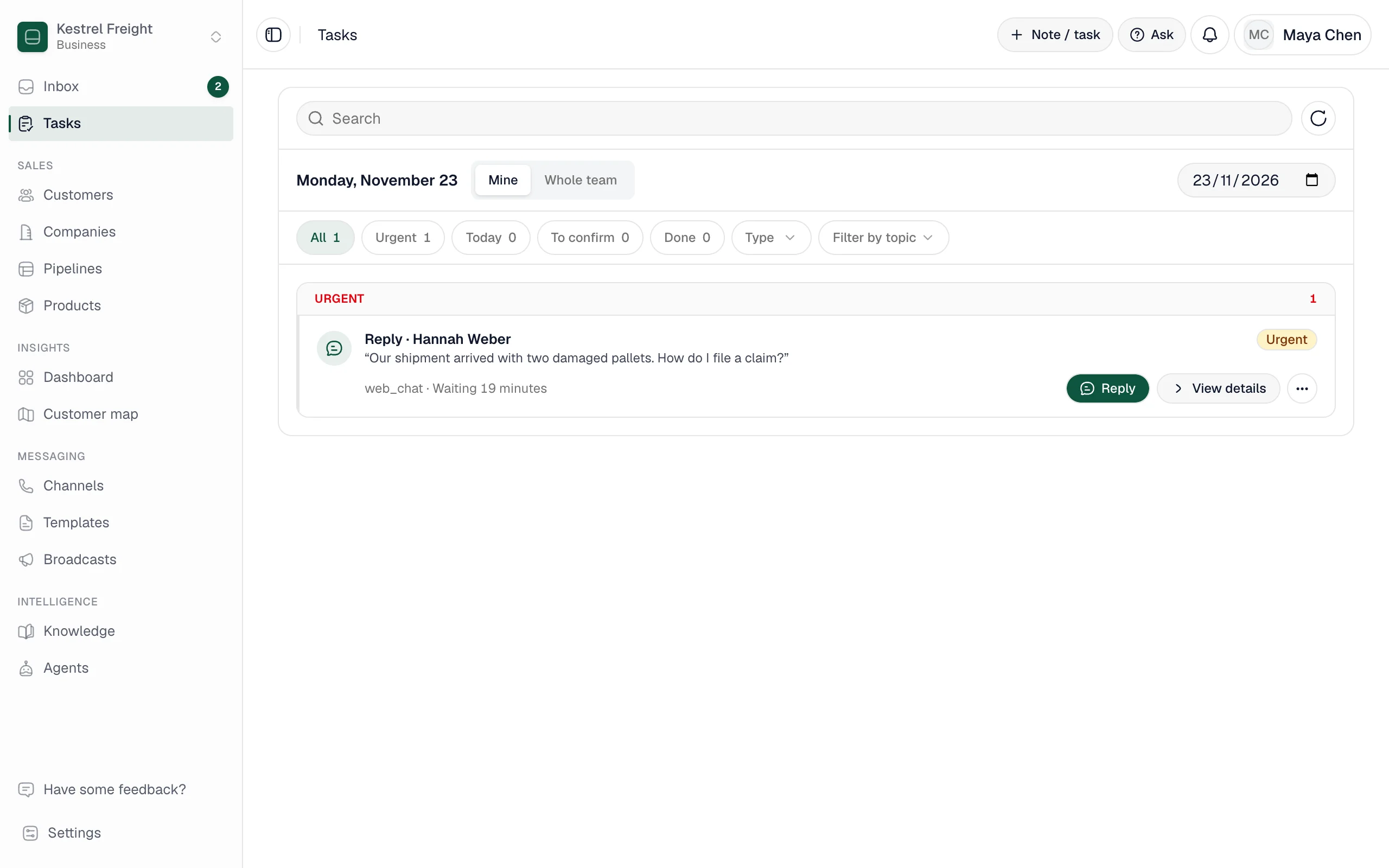
Tasks is each rep’s daily priorities. It answers one question: who needs me today, and why? It gathers customers waiting for a reply, overdue tasks, deals at risk and deals the AI detected, and sorts them by urgency. Open it at the start of the day and work from the top.
Tasks never uses AI to build the list. The same rules run every time you open or refresh it, so the list is predictable.
Sections
Section titled “Sections”| Section | What lands here |
|---|---|
| Urgent | Customers waiting for a reply longer than your reply limit. Deals whose customer is waiting or whose close date has passed. Tasks that just became overdue. |
| Today | Tasks due today, and tasks that have been overdue for a while. |
| To confirm | Deals the AI detected in conversations, waiting for you to accept or dismiss. Only appears when deal detection is on. |
| Done | What you finished today. It stays visible after you refresh. |
An overdue task stays Urgent for a few days, then moves to Today so it stops crowding out newer work. It is still marked overdue. Change how long in Settings → Sales.
Handling an item
Section titled “Handling an item”Each item opens in a drawer with the customer’s details, conversation and deal. From there you can:
- Reply to the customer, which marks the conversation as handled.
- Mark handled when the customer needs nothing more from you.
- Complete task for a task.
- Log activity for work done outside ChatAgent, such as a phone call or a visit.
- Snooze an item until later.
- Create a follow-up task.
- Close as lost a deal that has gone quiet.
- Accept a detected deal, which adds it to your pipeline.
After each action, Tasks moves you to the next item.
Mine and the whole team
Section titled “Mine and the whole team”Switch View scope between Mine and Whole team. Whole team shows everyone’s work that you have access to. It is useful for team leads checking that nothing is stuck.
You can also search, and filter by topic.
Past days
Section titled “Past days”Pick an earlier date to see what Tasks showed that day. Only days someone opened Tasks are saved. The current state of each item is labeled separately, so you can see what has changed since.
Where tasks come from
Section titled “Where tasks come from”Tasks are created by your team on a customer or deal, or from a follow-up suggestion. Give a task a due date so it shows up here. You can save common notes and tasks as Note & Task templates in Settings → CRM.
Some suggestions come from pipeline follow-up rules, such as “close date coming up with no task planned”. A suggestion creates nothing until someone accepts it. See Pipelines and deals.