Customers
Keep one profile for every person your team talks to, with their conversations, deals, notes and tasks.
A customer is a person your team talks to. When someone new messages one of your channels, ChatAgent creates a customer for them and links the conversation. You can also add customers by hand or import them from a file.
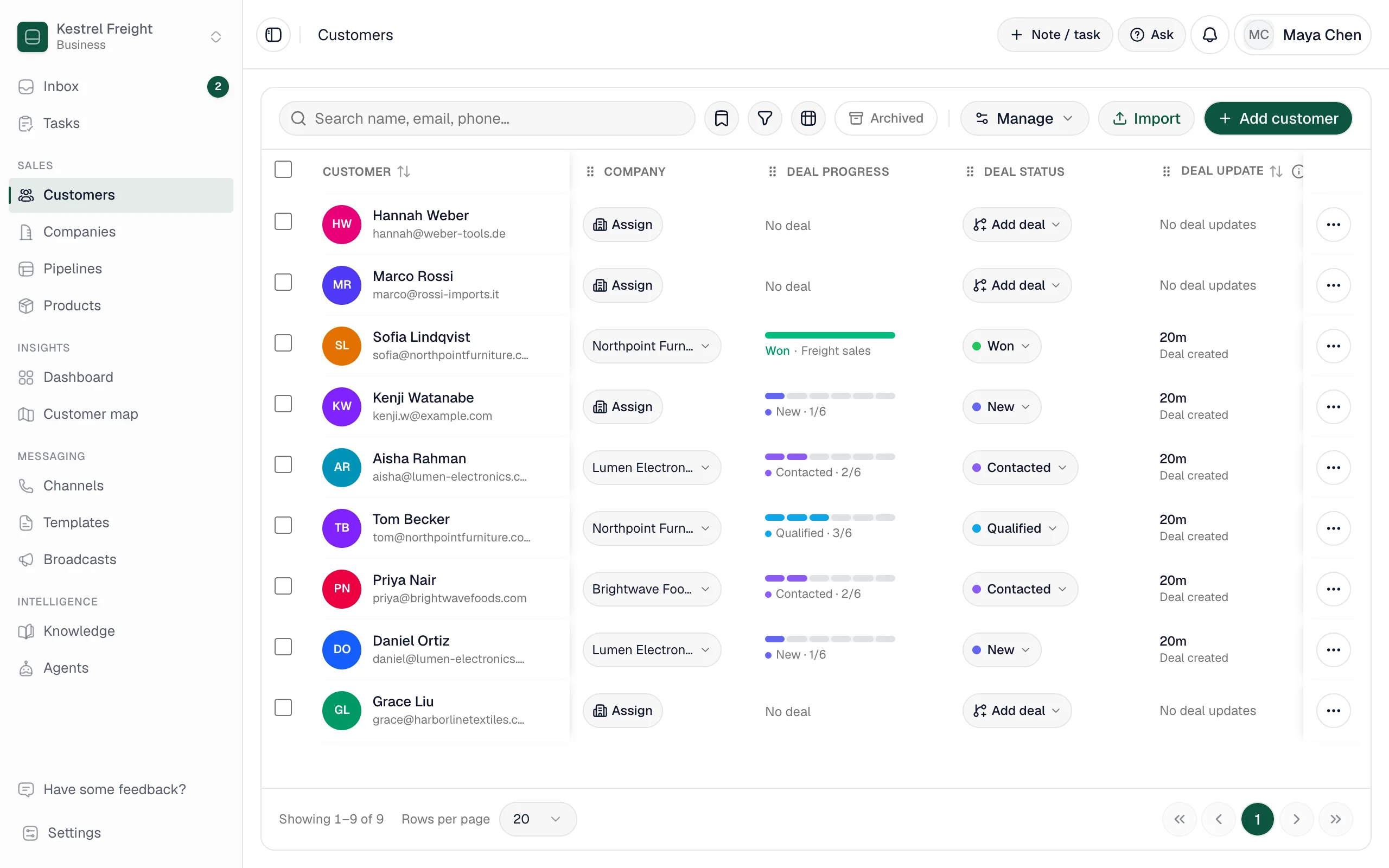
The customer list
Section titled “The customer list”Customers lists everyone you have access to. Members see the customers assigned to them. Owners and admins see everyone. See Members and roles.
- Search by name, phone or email.
- Filter by tag, owner, topic, custom field and more.
- Choose which columns to show. Custom fields can be columns too.
- Saved views remember your filters and sort order. They are personal.
A customer’s profile
Section titled “A customer’s profile”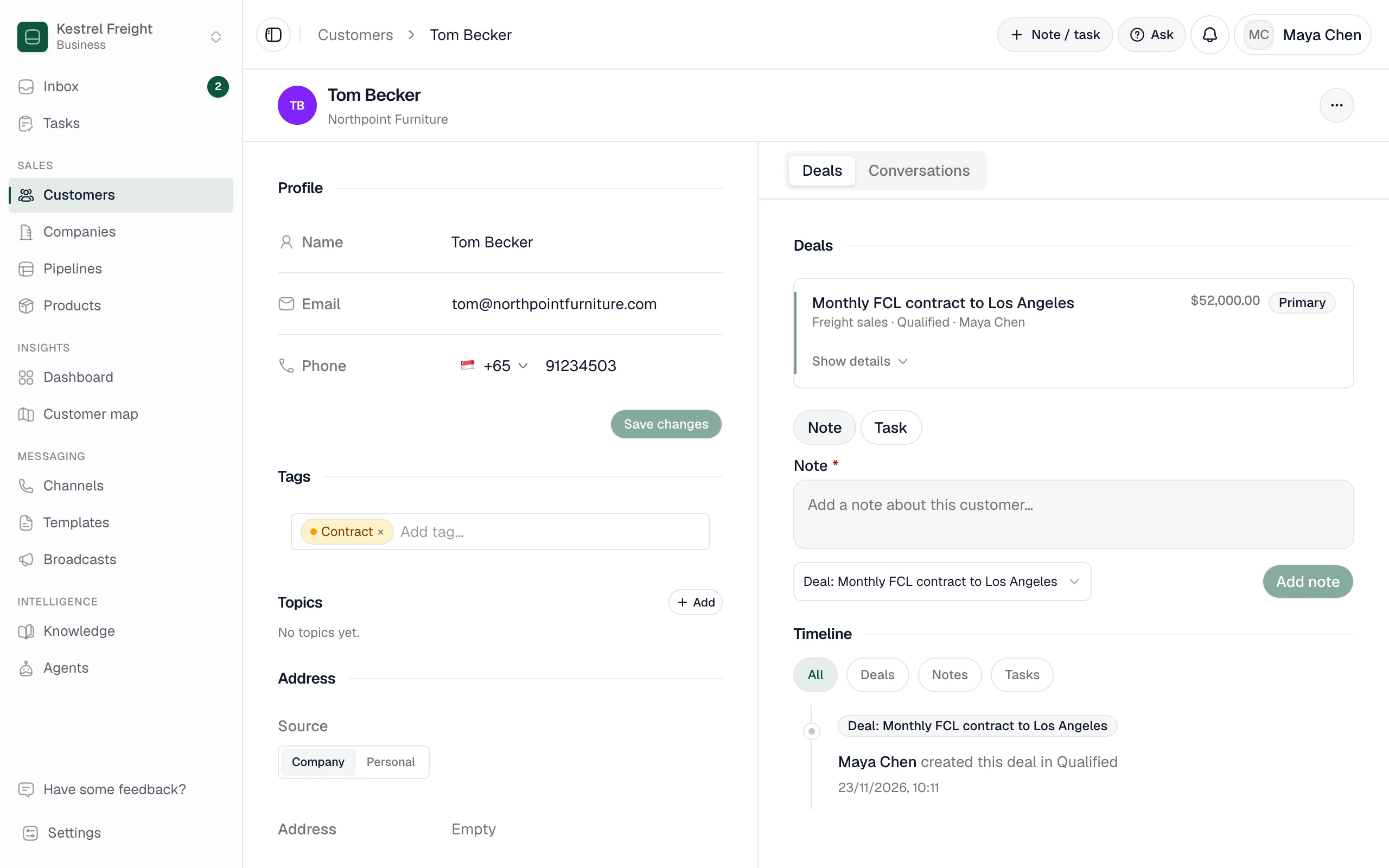
Open a customer to see everything about them in one place:
- Contact details: name, phone, email, address and company
- Tags and custom fields
- Their conversations across every channel
- Their deals, current and past
- A timeline of notes, tasks and deal updates
Notes and tasks are saved to the customer’s open deal when there is one. Without a deal, they are saved to the customer. A closed deal keeps its own history, separate from new work.
Tasks need a due date to appear in Tasks.
Where a customer came from
Section titled “Where a customer came from”When a customer came from a click-to-WhatsApp ad, the profile shows the ad that first brought them in and the most recent one. See WhatsApp conversion tracking.
Adding customers
Section titled “Adding customers”- Automatically, when someone new messages you.
- By hand, with Add customer. Add an address to show them on the customer map.
- From a file, with Imports. See below.
If the phone number or email already belongs to another customer, ChatAgent tells you before you create a second record. You can open the existing customer instead.
Importing customers
Section titled “Importing customers”- Open Customers → Imports and drop a CSV or Excel file.
- Match each column to a customer field. Display name is required. Columns with matching names are mapped for you.
- Choose whether to skip customers that already exist, matched by email or phone.
- Review the summary and start the import.
You get a notification when the import finishes. If some rows fail, nothing from those rows is added, and you can fix the file and try again. Importing needs the Manage customer profiles permission.
Tags group customers, for example VIP or Wholesale. Manage them in Customers → Tags, then add them on a profile or in bulk from the list. Tags also filter the Inbox.
Merging duplicates
Section titled “Merging duplicates”Customers → Duplicates finds customers that share a phone number or email.
- Pick the record to keep. The others merge into it.
- Resolve conflicting values. The kept record’s values are used unless you click another one.
- Confirm. The merged records are removed, and their conversations and history move to the record you kept.
Archiving
Section titled “Archiving”Archive a customer to hide them from the default list. Their conversations, deals and activity are kept, and you can restore them later.