Pipelines and deals
Track every sales opportunity on a board, and see which deals need attention.
A pipeline is your sales process. It appears as a board: each column is a stage, and each card is a deal, one opportunity with one customer. Drag a deal across stages as it moves forward.
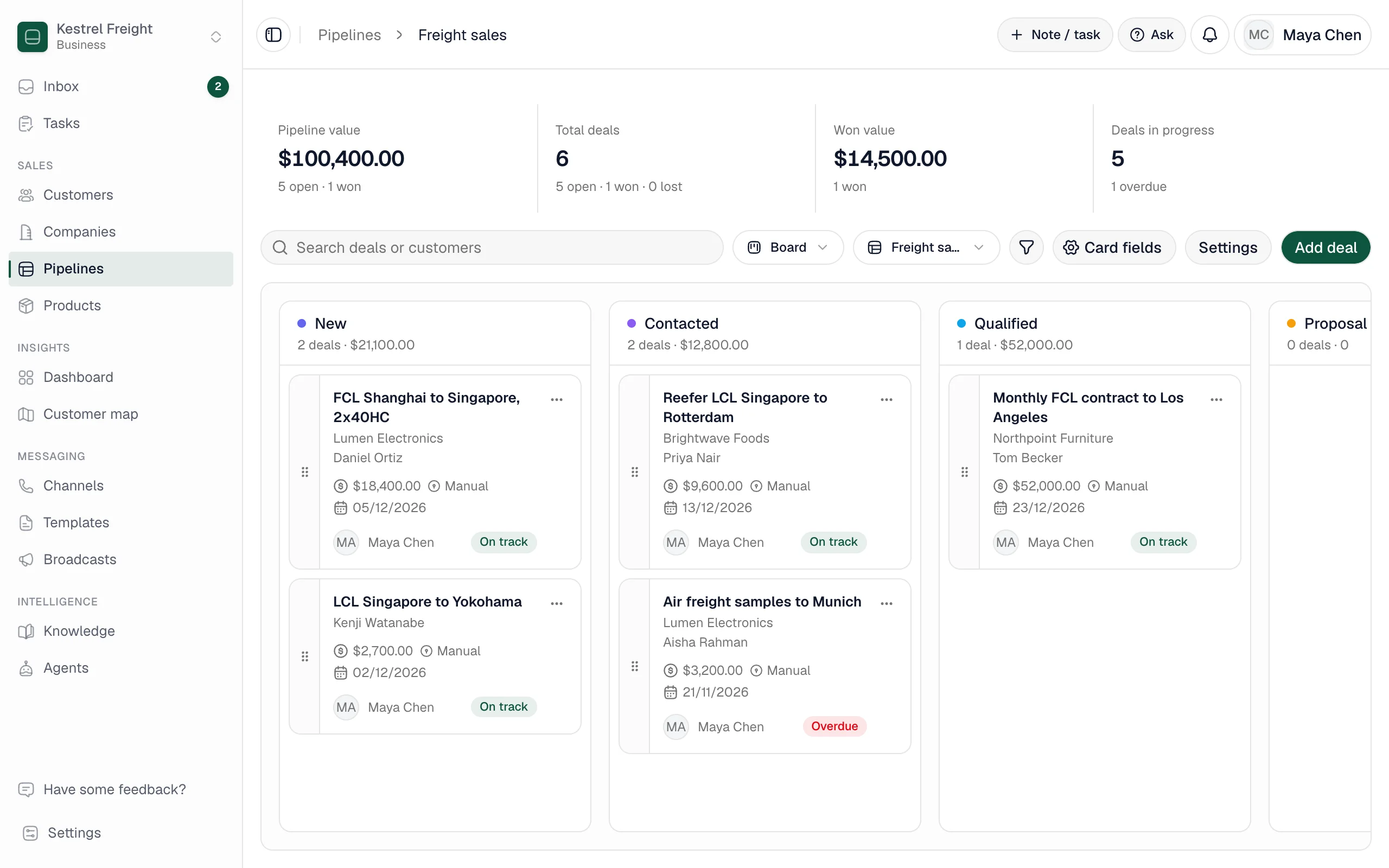
Your organization can rename “deal” to a term that fits your business, such as “lead” or “opportunity”. The app and these docs mean the same thing. See Organization settings.
Creating a pipeline
Section titled “Creating a pipeline”Open Pipelines and create one. It starts with default stages you can rename, reorder and remove. Mark one stage as won and one as lost.
Each pipeline has one currency. Every deal and target in it uses that currency, and it cannot change once the pipeline has deals.
Set a default pipeline in its settings. New deals and dashboard numbers use it when no pipeline is chosen.
Working with deals
Section titled “Working with deals”- Create a deal from the board, from a customer’s profile, or from the details panel in Inbox.
- Move a deal by dragging it, or move it to another pipeline from the deal’s menu.
- Close a deal by moving it to the won or lost stage. When a deal is lost, pick a lost reason so you can compare lost deals later.
A customer can have only one open deal per pipeline. To start a new one, close the current deal as won or lost first.
Open a deal to see the customer, the conversation and an activity timeline. Log calls, meetings and next steps as notes, and plan tasks with due dates.
Deal value
Section titled “Deal value”A deal’s value can come from different places. The deal shows which one it is using:
| Value | Where it comes from |
|---|---|
| Manual | Set by a teammate. It stays as is when products change. |
| Stated | The customer stated the amount in chat. |
| From products | Added up from the products on the deal. |
| Estimate | A guess from your usual won deals, not a quote. |
Edit the value at any time to set your own.
Deal health
Section titled “Deal health”ChatAgent watches open deals and flags the ones that need attention:
| Flag | Why |
|---|---|
| Customer waiting | The customer has waited longer than your first-response limit for a reply. |
| Silent after quote | A quote went out and the customer has not written since. |
| Objection unresolved | The customer hesitated and nobody followed up in time. |
| Stalled | No customer message and no team touch for a while. |
| Close date passed | The expected close date has passed. |
Flagged deals appear in Tasks. Set the limits in Settings → Sales. See Deal automation.
Pipeline settings
Section titled “Pipeline settings”Open a pipeline, then Settings.
| Setting | What it does |
|---|---|
| Stages | Reorder stages, rename them and set won or lost. |
| Access | Choose who can open this pipeline. Creating and moving deals also needs the Manage deals permission. People who can view all customers always see every pipeline. |
| Targets | What the pipeline should win each month or quarter, with optional per-person quotas. The dashboard shows progress against them. |
| Automation | Create deals automatically when new customers arrive or a tag is added. |
| Follow-up rules | When this pipeline’s deals ask for a look. See below. |
| Lost reasons | The reasons people can pick when a deal is lost. |
| Archive | Hide the pipeline from the list. Deals and history are kept, and you can restore it. |
Follow-up rules
Section titled “Follow-up rules”Follow-up rules belong to each pipeline. They show as notes on the deal, and some suggest a follow-up task. A suggestion creates nothing until someone accepts it.
| Rule | What it does |
|---|---|
| Time in stage | Marks a deal as stuck after it has stayed in one stage this many days. |
| Close date | Warns this many days before the expected close date when no task is planned, and suggests a follow-up. |
| Next task | Marks open deals with no upcoming task. |
| Stall window (days) | How many quiet days before a deal counts as stalled. Choose Follow the organization to use the organization’s setting. |
Lost reasons
Section titled “Lost reasons”Each pipeline has its own list. Archive a reason to stop people choosing it. Deals that already used it keep it. You can copy reasons from another pipeline.
Who can do what
Section titled “Who can do what”Viewing pipelines needs customer access. Creating and moving deals needs Manage deals. Changing pipeline settings needs Configure, which owners and admins have by default. See Members and roles.